Some work is easier to point at than to describe.
1. Open the Document tab
Open High School Reunion Dec 2026 from Projects and click the Document tab (1). Every file written or drawn for the project is listed here, newest first.
2. Start a new drawing
Click NEW DRAW (2).

3. Draw with the tools on top
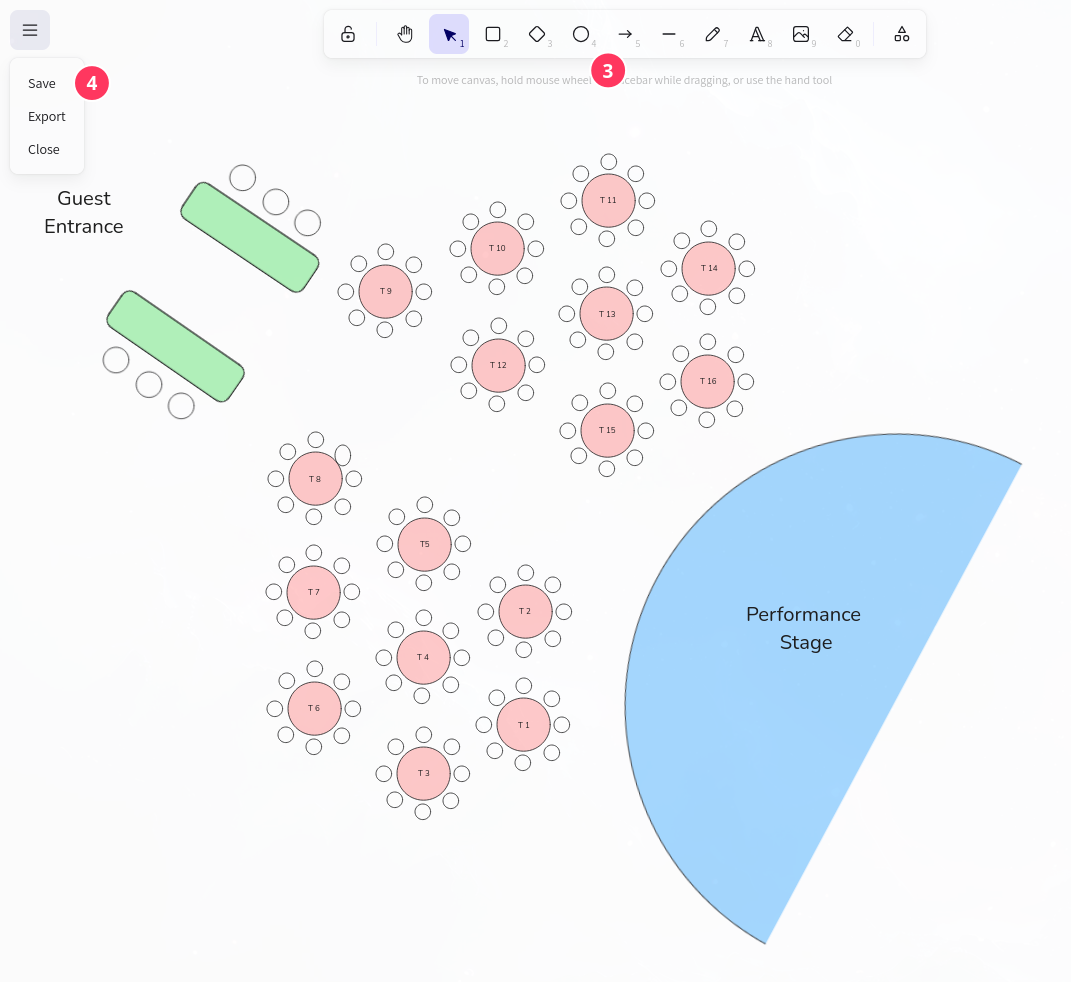
The toolbar runs across the top of the canvas (3). Pick the ellipse tool, click on the canvas and drag to draw a round table. Add a ring of small circles as chairs, then use the text tool to write the label inside: T1. The rectangle tool draws the two green entrance mats, a larger shape becomes the Performance Stage,
Scroll the mouse wheel to zoom, and hold Space to pan, as the hint under the toolbar says.
Press Ctrl + D (⌘ + D on a Mac) to duplicate object.
Press Ctrl + G (⌘ + G) to group the objects
4. Save it with a name
Open the menu at the top left of the canvas and choose Save (4). Letshape asks for the document name: type Event Floor Plan and press OK. The whole scene — shapes, labels and positions — is stored as a document of the project, so closing the page no longer loses your work.
The same menu holds Export, to download the drawing, and Close, to leave the canvas.
5. Document tab
Back in the Document tab, Event Floor Plan sits at the top of the list (5) with the time it was last updated.

Click the Draw Icon (6) to load the saved scene back onto the canvas.
Click the Pencil Icon (7) to open the document form: a rich-text area for notes.
Click the delete Icon (8) to delete document