I'm currently login as John, the committee member the task was assigned to for Event Floor Plan. The task itself was created by Yudy.
1. Find your task on the calendar
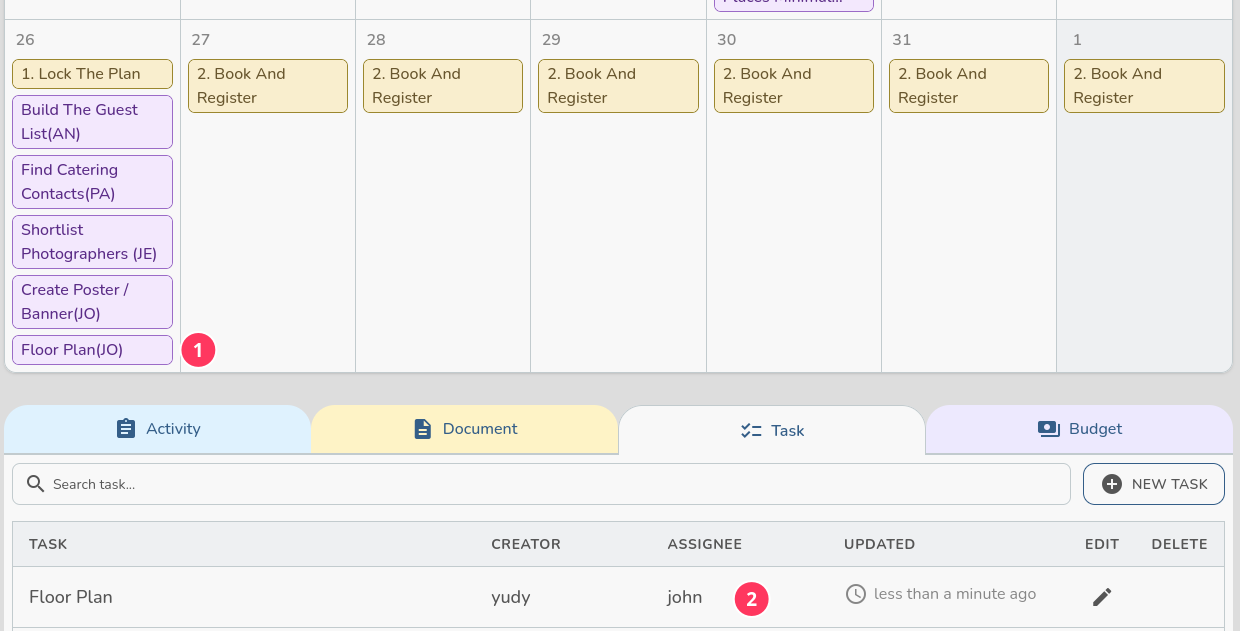
The project calendar is the first place an assignment shows up. On 26 October the badge reads Floor Plan(JO) (1) — the task name plus the assignee's initials. Purple means a task that is not done yet;
2. Find it in the Task tab
The same record is listed in the Task tab (2), with the creator, the assignee and how long ago it changed.
3. Produce the deliverable first
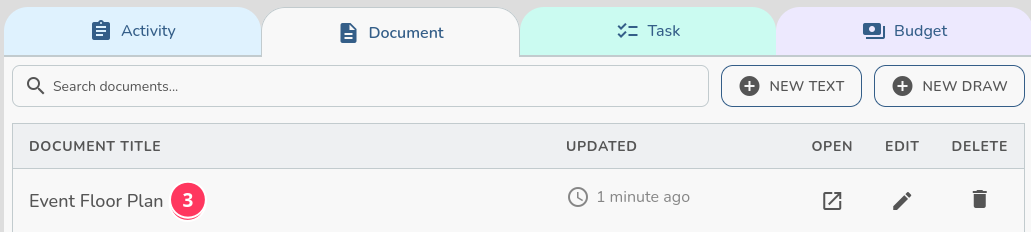
From previous tutorial, I draw the floor plan with the draw tool, so the document that I would like to link in my task report listed in the Document tab (3), it's ready to be linked.
4. Open the task from the calendar
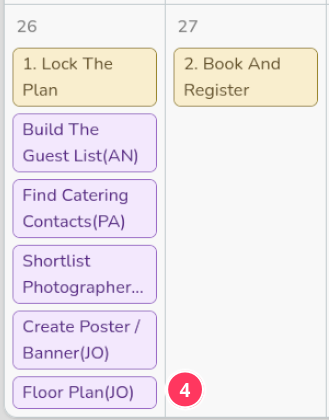
Click the Floor Plan(JO) badge (4) and a popup window opens with the task details,
5. Click Edit
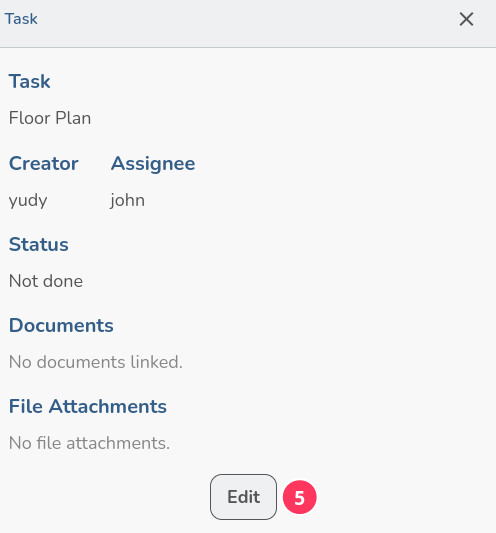
Click Edit (5).
6. Search for the document
Click the Documents field and type the the title that you remember (6) — flo is enough. The field searches the project's documents as you type, it automatically look up, so you never have to remember the exact name. (7)
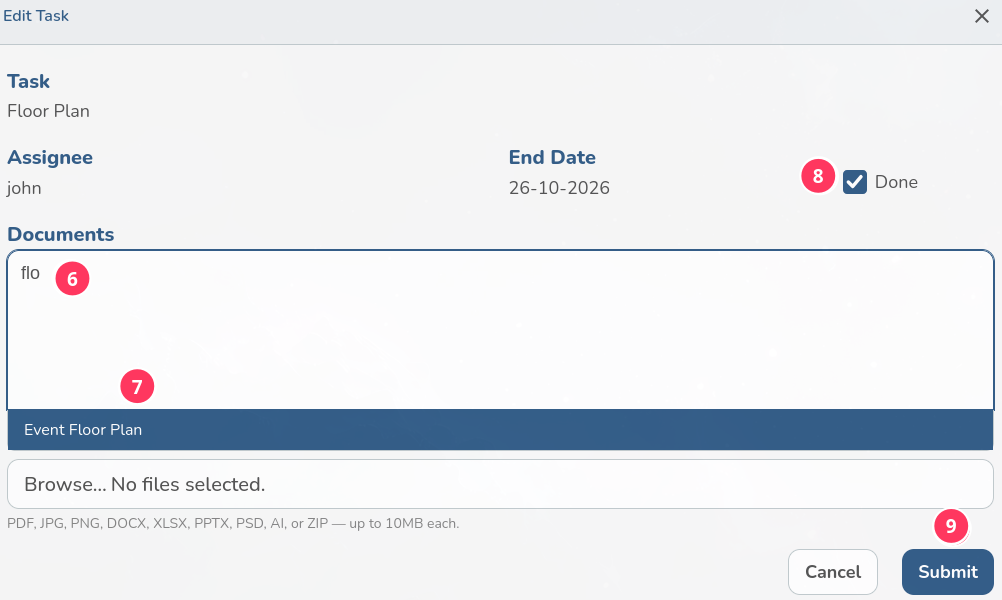
Tick the Done checkbox (8). This is the important step: the calendar and the task list will change task colour from purple to Green it your team at a glance will understand that it is Done.
Click Submit (9) to save.
Read the colour on the calendar
Look at 26 October again: Floor Plan(JO) is now green (10). A teammate glancing at the month knows the task is finished without opening it, the same way purple told them it was still open.
the Floor Plan row in task list is highlighted green too (11),
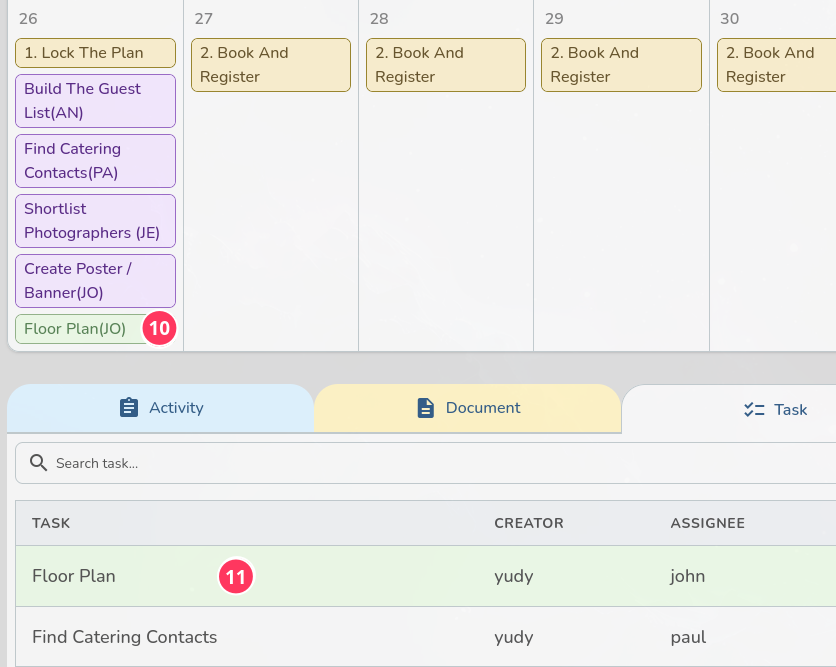
The task now carries its evidence and its state. The drawing is linked where the team can find it, and the done flag is the one signal the calendar and the list both read. Nothing has to be asked in chat to know whether the floor plan is ready.