Part 1 gave the reunion a place to live. Now give it a timeline. This tutorial has two halves: first you put the phases of work on the calendar, then you break one phase into tasks the committee members own.
We keep using the same example: High School Reunion Dec 2026, five committee members, eight weeks from 6 October to the event on 1 December 2026.
Part 1 — Create a simple schedule
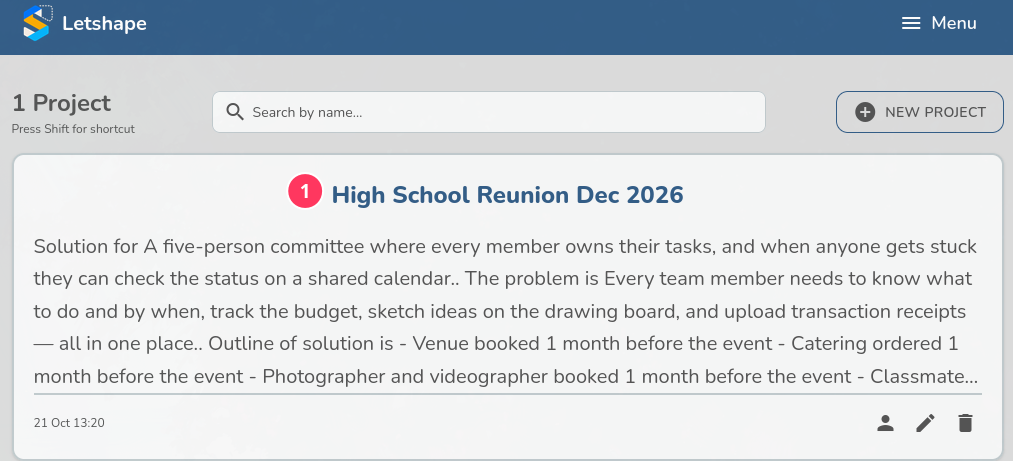
1. Open your project
From Projects, click the High School Reunion Dec 2026 card. Everything below happens inside this project.
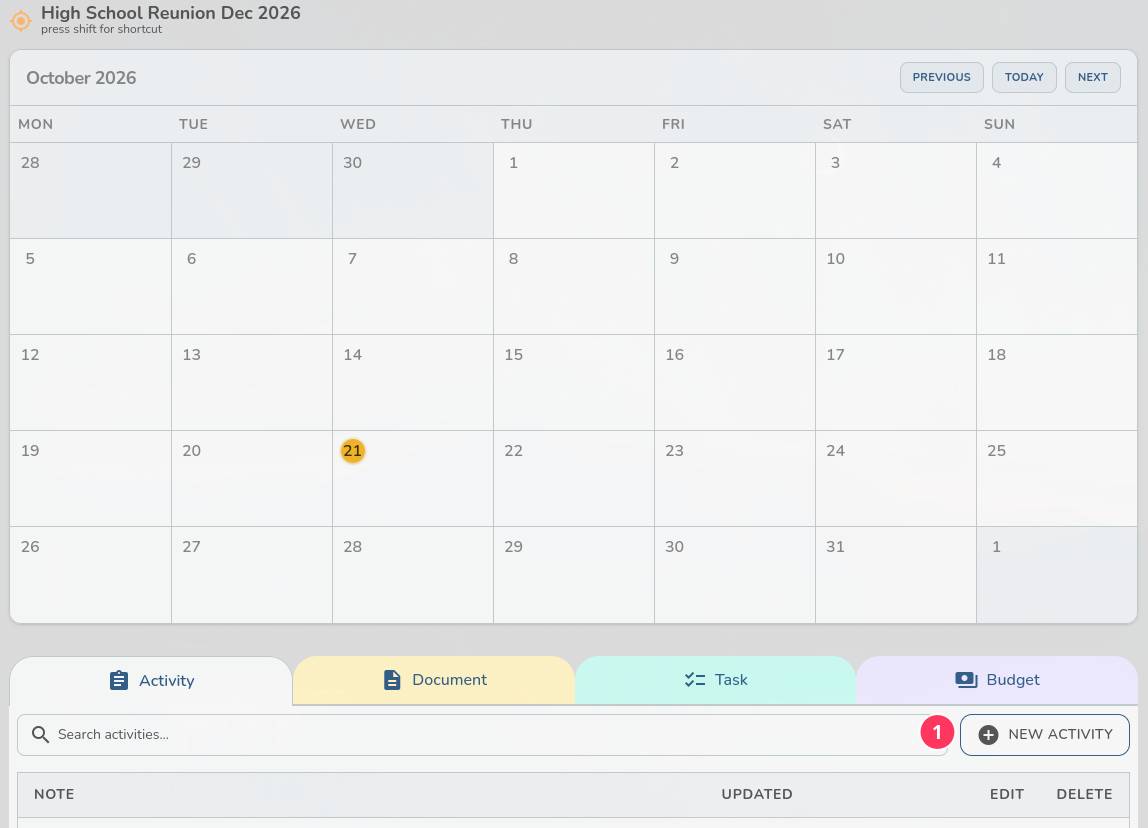
2. Start a new activity
Open the Activity tab and click NEW ACTIVITY.
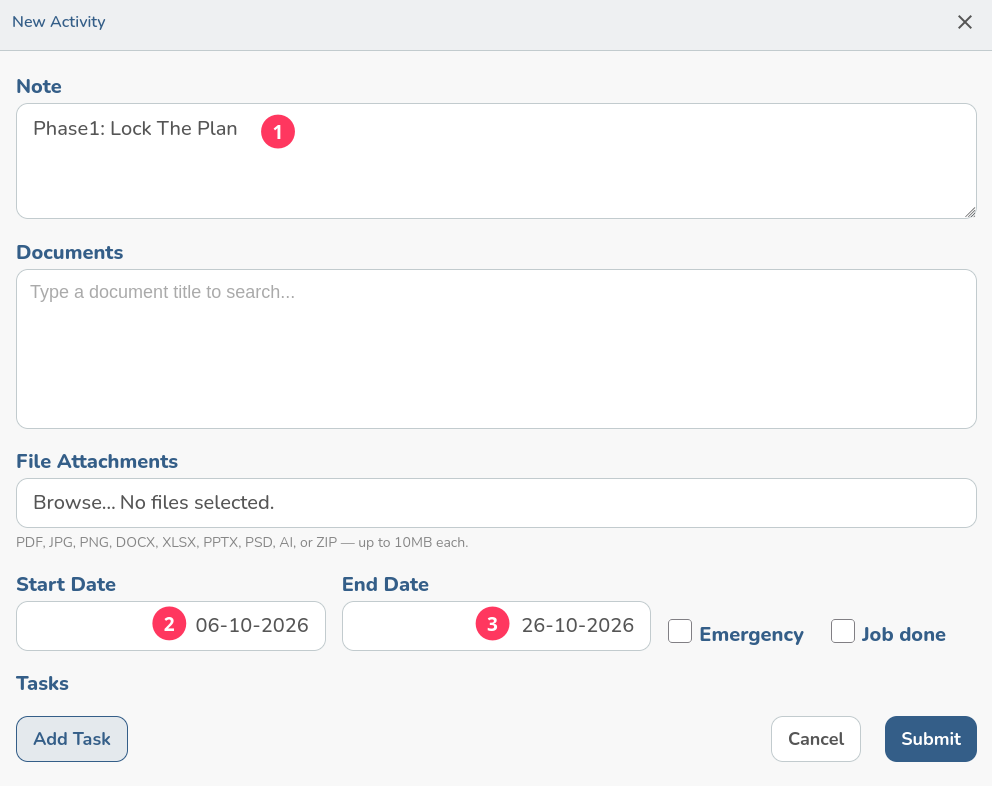
3. Name it and give it dates
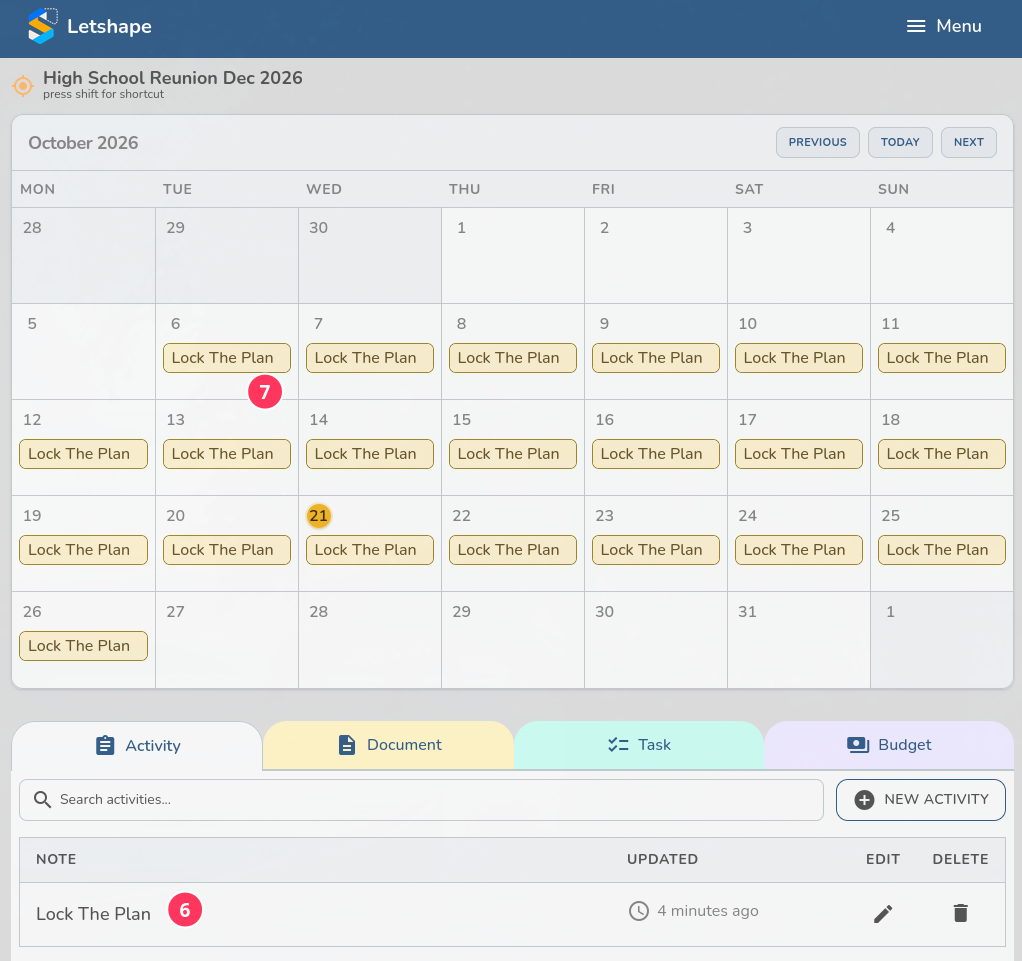
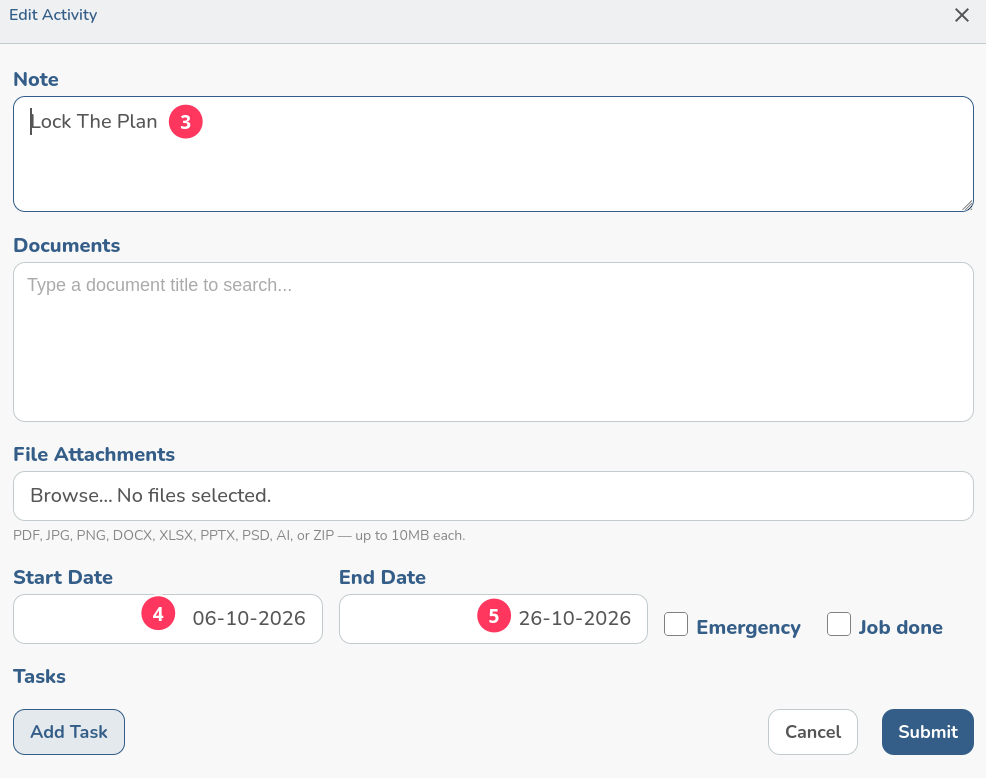
In Note write the phase name, then fill in Start Date and End Date. Dates are typed as DD-MM-YYYY. For phase one, type Phase 1: Lock the Plan with the dates 06-10-2026 and 26-10-2026.
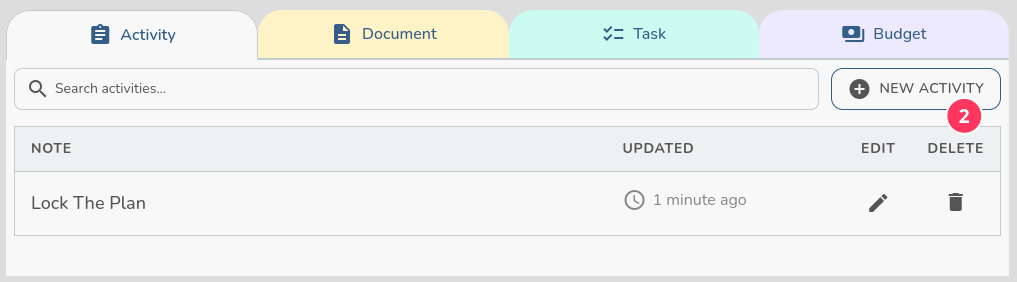
Click Submit. The activity now appears in the Activity tab with the time it was last updated.
4. Check the calendar
Scroll up. The activity is drawn on every day between its start and end date, so the whole committee can see the phase at a glance. Click PREVIOUS / NEXT to move between months; the yellow circle marks today.
5. Adjust it when plans move
Click the pencil icon next to the activity to reopen the form. Change the note or either date and click Submit — the calendar redraws immediately. In the screenshots the note was shortened to Lock The Plan and the same dates were kept.
The full schedule: three phases, eight weeks
Repeat the steps above for the other two phases. Three activities cover the eight weeks, and together they make the plan readable on the calendar:
- Phase 1: Lock the Plan — 06-10-2026 to 26-10-2026. Confirm the date, shortlist venues and vendors, draft the budget, build the guest list.
- Phase 2: Book and Register — 27-10-2026 to 16-11-2026. Book venue, catering and photo/video by 1 November, open registration, draw the floor plan.
- Phase 3: Finalize and Run — 17-11-2026 to 01-12-2026. Confirm headcount, settle payments, label the floor plan, run the event.
Overlapping phases are fine — pick dates that match when the work actually happens, not a tidy grid.
Part 2 — Create a simple task
6. Open the Task tab
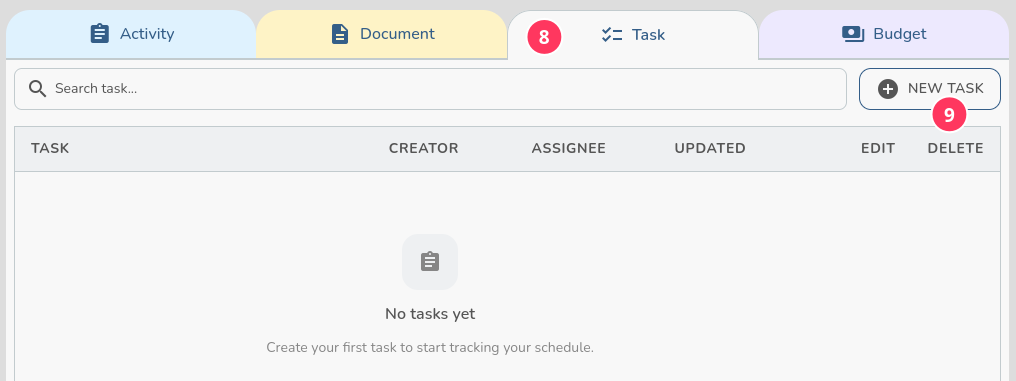
Activities say when; tasks say who. Open the Task tab and click NEW TASK. A new project shows No tasks yet.
7. Name the task and pick an owner
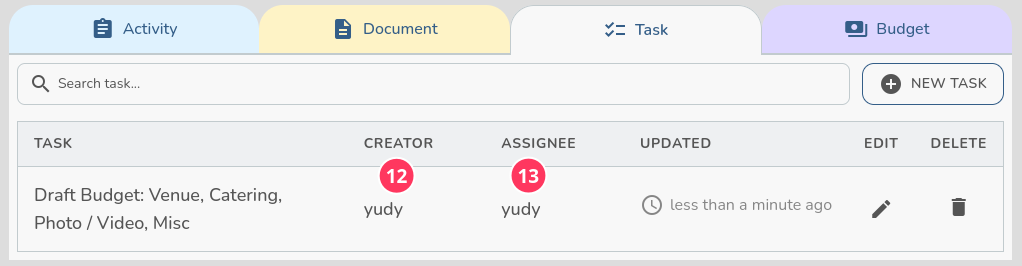
Describe the work in Task, then choose who owns it from the dropdown. The example is Draft Budget: Venue, Catering, Photo / Video, Misc, assigned to yudy.
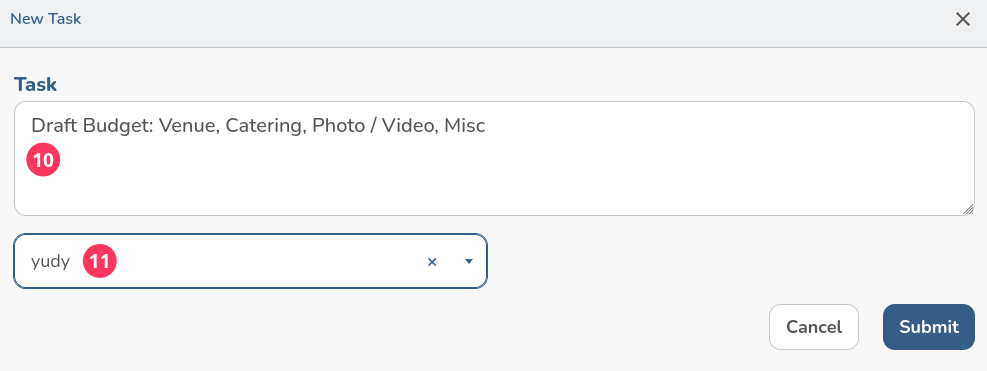
Click Submit. The list shows two different people per task: the creator is whoever typed it, the assignee is who has to do it. They are the same here because the task was created and taken by one person — on a real committee they usually differ.
What changed?
The reunion now has a dated schedule of three phases on the calendar and a first task with an owner. From here every piece of work has a when and a who, which is what the progress summary is built on.