This last tutorial of the walkthrough reads the User Activity popup for the reunion project: what each committee member changed recently, grouped by person,
1. Open the project and click the team icon
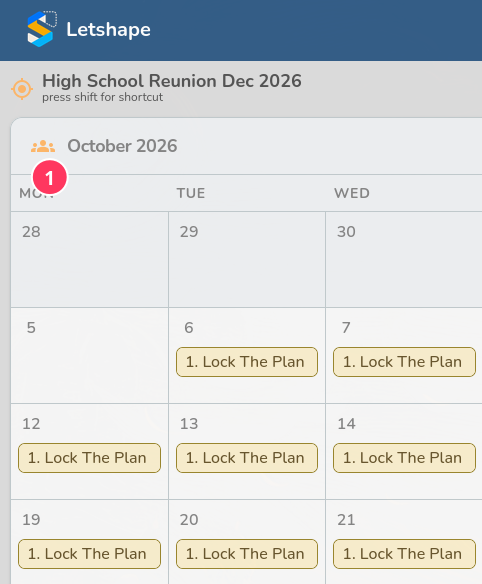
Sign in, open your project, and look at the calendar header: a small people icon sits just left of October 2026. Click it (1).
2. Read the window
The popup is titled User Activity and states its window: Last 3 months, newest first (2). Three months is deliberate — on a long project an unbounded list would be useless. The reunion runs eight weeks, so the window covers everything and no work is missing from it.
Every line carries three fields: the date, the kind of record (ACTIVITY, DOCUMENT, TASK or BUDGET), and its text. Lines are grouped under the person who did the work, and the person who worked most recently is at the top. Close returns you to the calendar.
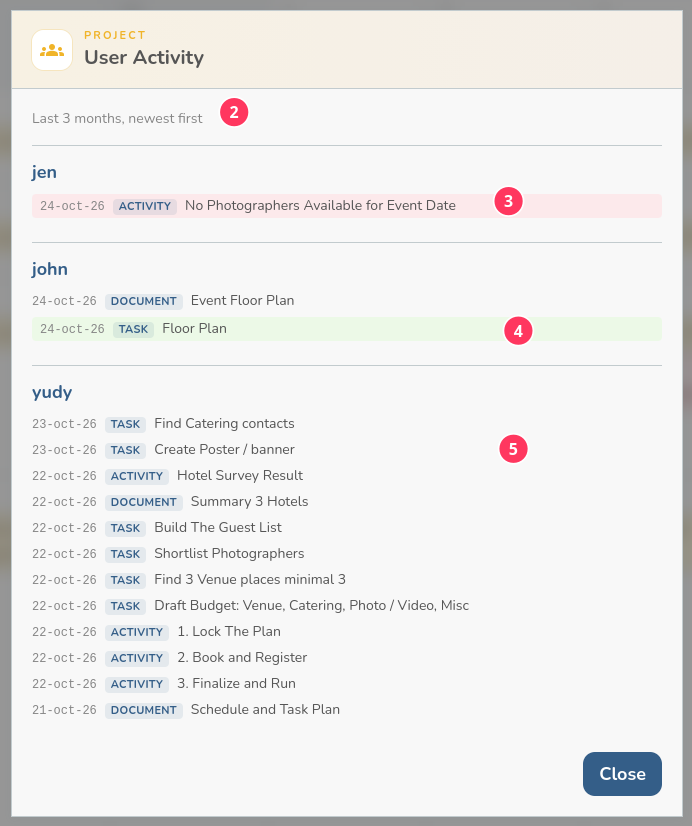
Jen's No Photographers Available for Event Date is tinted red (3). It is the same emergency the calendar draws in red.
John's Floor Plan task is tinted green (4) because it was ticked done. The key is the more green tint showing it means the more tasks done.
Under Yudy the list keeps going (5): tasks created, activities dated, documents saved.